
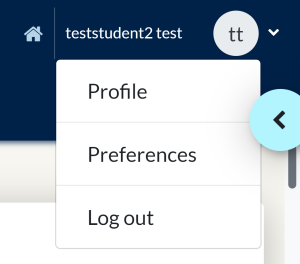
 Your student profile is set up to display just your name and the default roundel showing your initials, but you can edit it to introduce yourself and add a picture (or any other image you want to use to represent you) by clicking on your name or initials then choosing Profile (via Study) or Preferences > Edit Profile (via Portal).
How do I upload a photo?
To change your picture follow these steps:
- Click on your name in the top banner.
- Click Preferences or Profile.
- Click Edit Profile.
- Scroll down the page to the heading User Picture – click on the heading to open up this section.
- Drag and drop your image file into the box with the grey arrow in a circle at the centre, or search for the file using the
 icon.
icon. - Once you are happy with the changes you have made, click Update Profile at the bottom of the screen.
Changing your password
If you log into your course via Study using your SSO details and wish to change your password, you can do this using the Change Password page.
If you access your course via Portal with a Moodle username and password follow these steps to change your password:
- Click on your name in the top banner.
- Click Preferences.
- Click Change password.
- Follow the steps on screen to change your password.
- When you are happy with your changes, click Save Changes at the bottom of the screen.
Please be aware that this password change will only affect access to Portal. Your password for all other systems will remain unchanged.
Changing your Forum preferences
- Click on your name in the top banner.
- Click Preferences.
- Click Forum preferences.
- Read and select your preferred options, there is more information on these in the Discussion forums section. It is helpful to select Yes to Forum tracking as this allows new posts to be highlighted when you log into your course.
- Once you are happy with the changes you have made, click Save Changes at the bottom of the screen.
For information on changing your forum subscriptions see the Discussion forums page.