
This section introduces the course homepage and explains how to navigate your way around the course website and the course materials. When you access a course, you can see your course material. There is a user menu to set your preferences and complete your personal profile, and a collapsed menu drawer. See below for details of each.
Please note: The screenshots below are illustrative only. Your course may not include all the blocks shown here in the menu drawer, and may include others not shown here.
Your course homepage
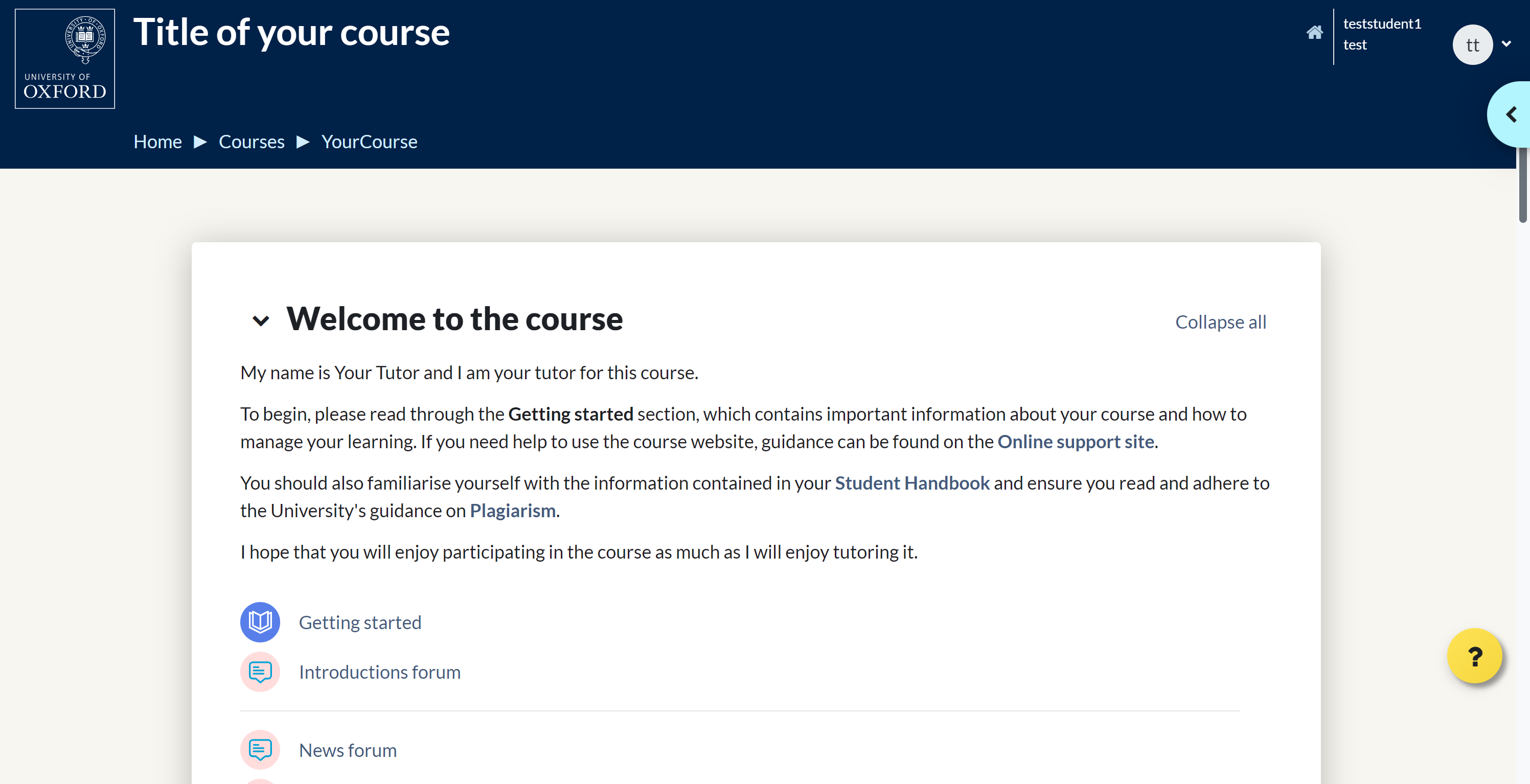
Your course homepage will be the main page you use to access the course materials, activities and other features of your course. You can scroll down to access the materials for each unit or module.
If you are studying a short course, the main course material for you to study each week is indicated by the  book icon. You may also see forums, chat sessions, polls, surveys, InfoMaps and any other activities or resources you will use during your course.
User menu
Selecting the user icon in the top right-hand corner of the screen gives you access to the user menu, where you can upload a profile picture, change your notification settings and preferences.
Menu drawer
You will be able to access advanced tools and functionalities in the Menu drawer. To see it, you can click on the thumbnail with an arrow in the top right-hand corner of your screen  .
.
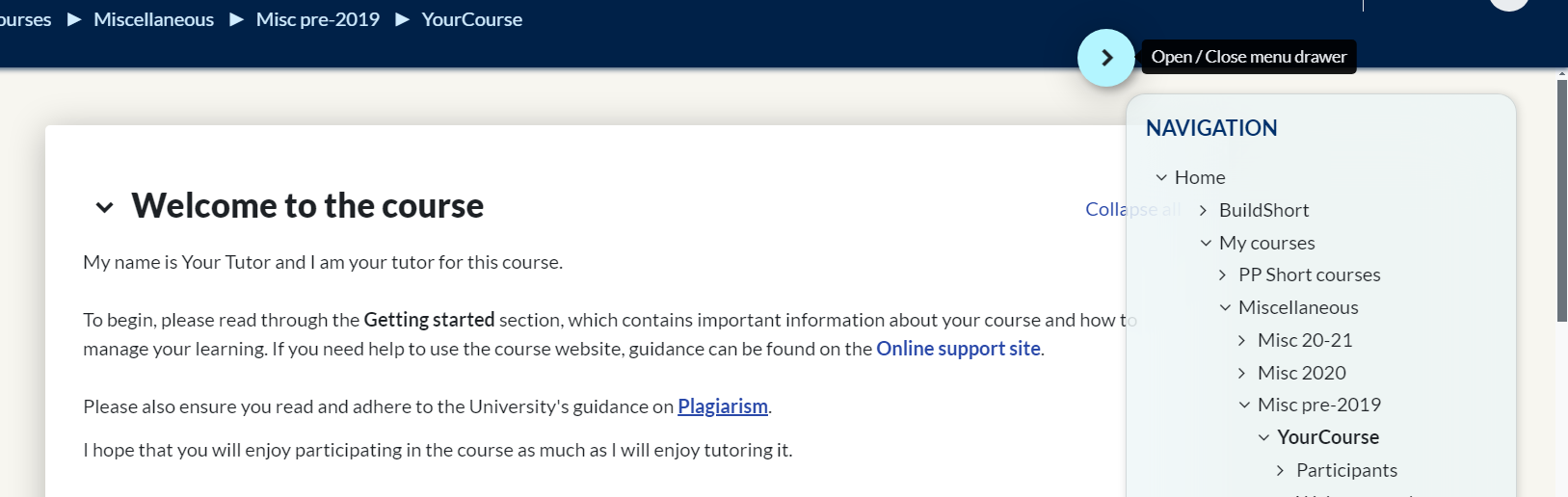
When the Menu drawer expands, you will be able to scroll up and down to see a number of blocks as described below.
Please note, the blocks available in the drawer may be different depending on which page you are on, and which course you are studying.
The Navigation block
You can move around your course materials via the Navigation block.
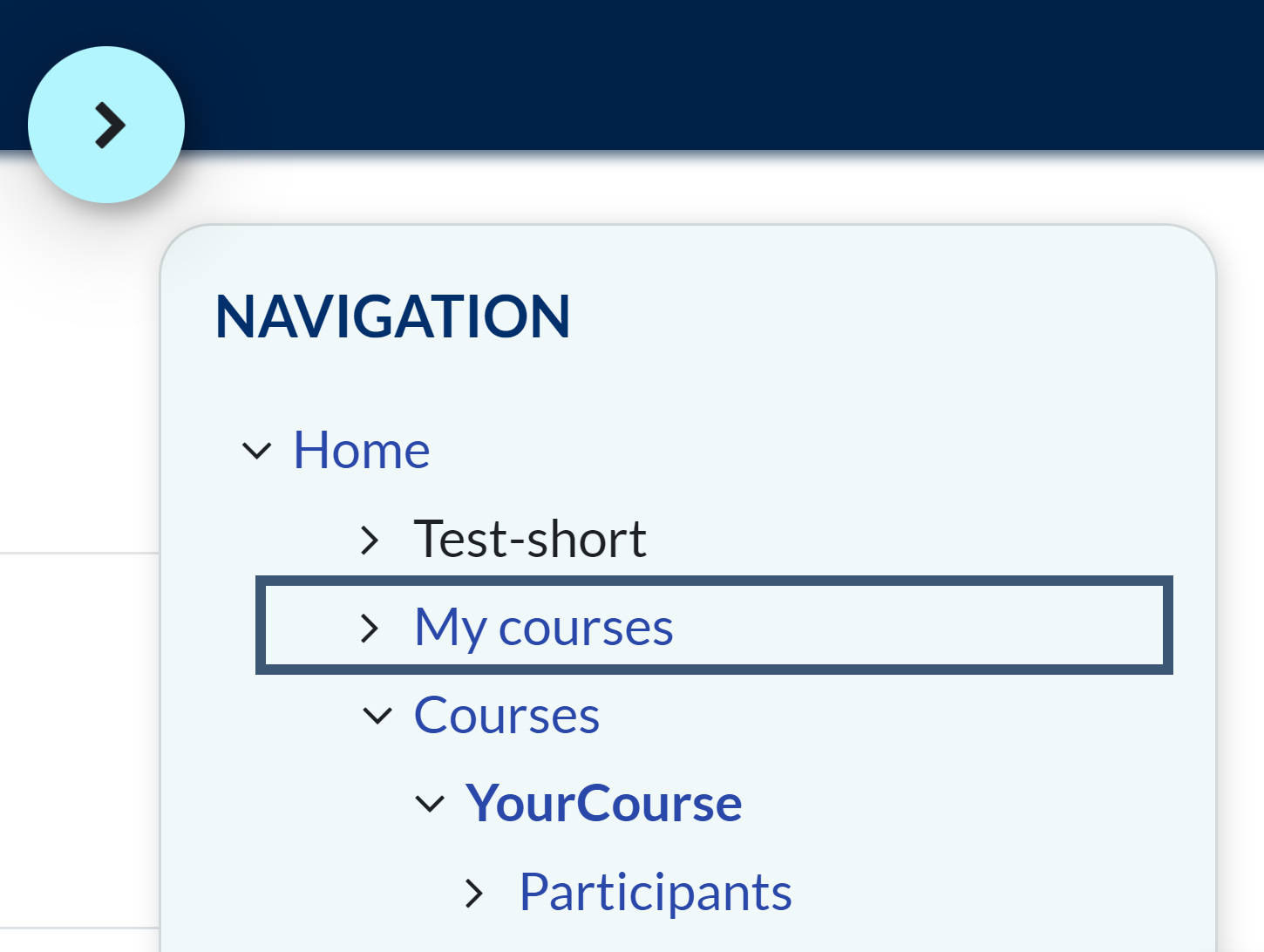
Click to expand the relevant section and click any of the links to navigate to that section or feature of the course. From here you can move from one unit to another, without going back to the course homepage.
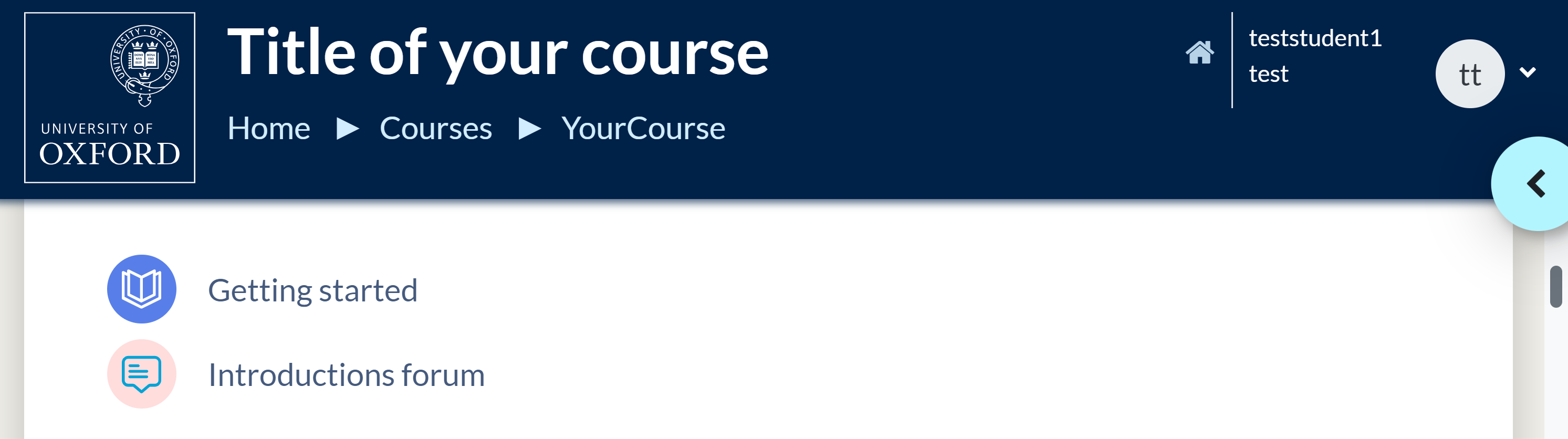
You can also use the breadscrumb trail in the website header, below the course name. Click on your course title in the top banner at any point to return to the course homepage. You can also use your browser’s back and forward buttons.
Other blocks
Below the Navigation block, you will see a number of other blocks. These provide essential tools and resources to help you study online. Your course will contain some or all of the following blocks. For example, the search forum, recent activity, and activity shortcut blocks.
Search forums
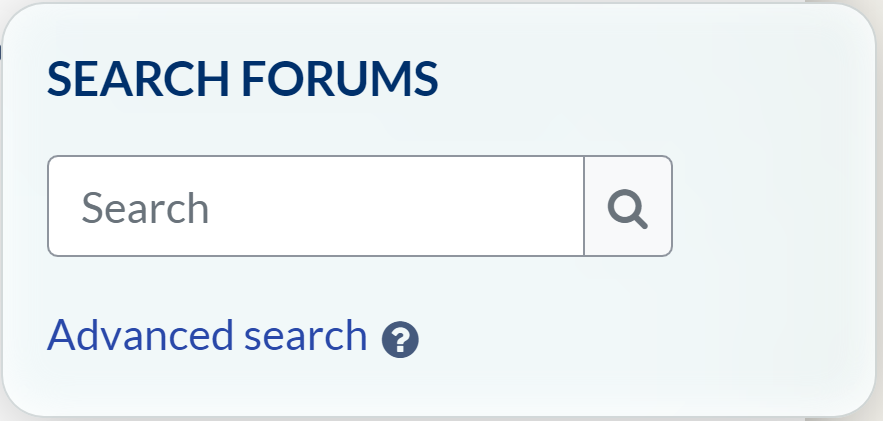
To search the forums, enter the text you are looking for in the box and then click the spy glass icon. For a more specific search, click Advanced search. Remember the search facility only searches the discussion forums, not the course materials.
Recent activity
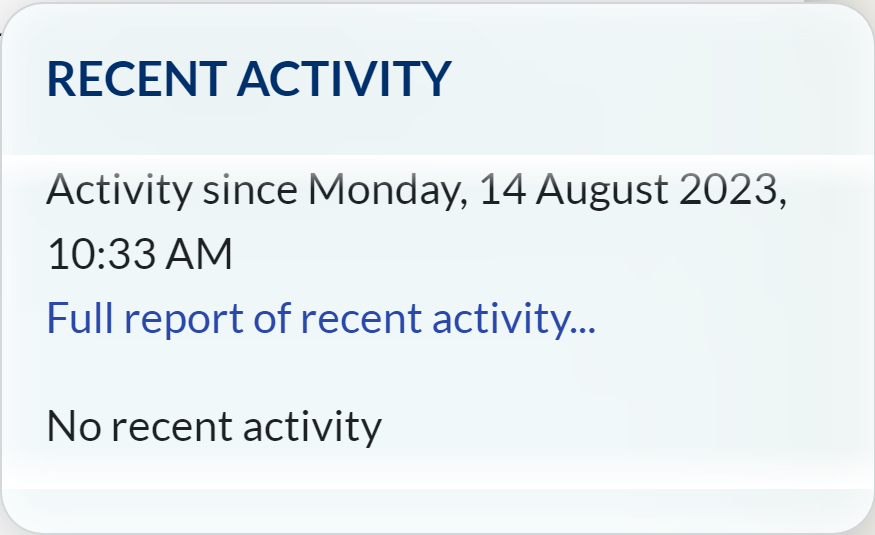
This displays a list of recent activities within the course, together with a link to the item and a full report of all recent activity. The number and nature of the items displayed will depend on the amount and type of activities included in the course.
You may find this block particularly useful to see if any new postings have been made in the discussion forums since you last logged in.
Activities
This lists the different activities available in your course. Clicking on a link will display a list of all available activities of that type.
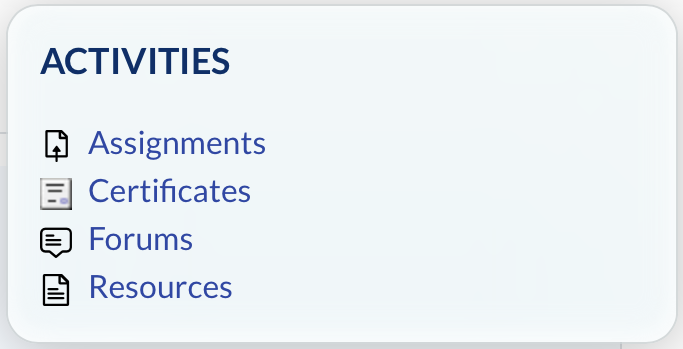
The most commonly used activities are Forums and Assignments. Forums are a central part of an online course so for more details on how to use the forums see the Discussion forums page.
Oxford University Press Online Resources
Access to Oxford University Press Online Resources is available to some students.
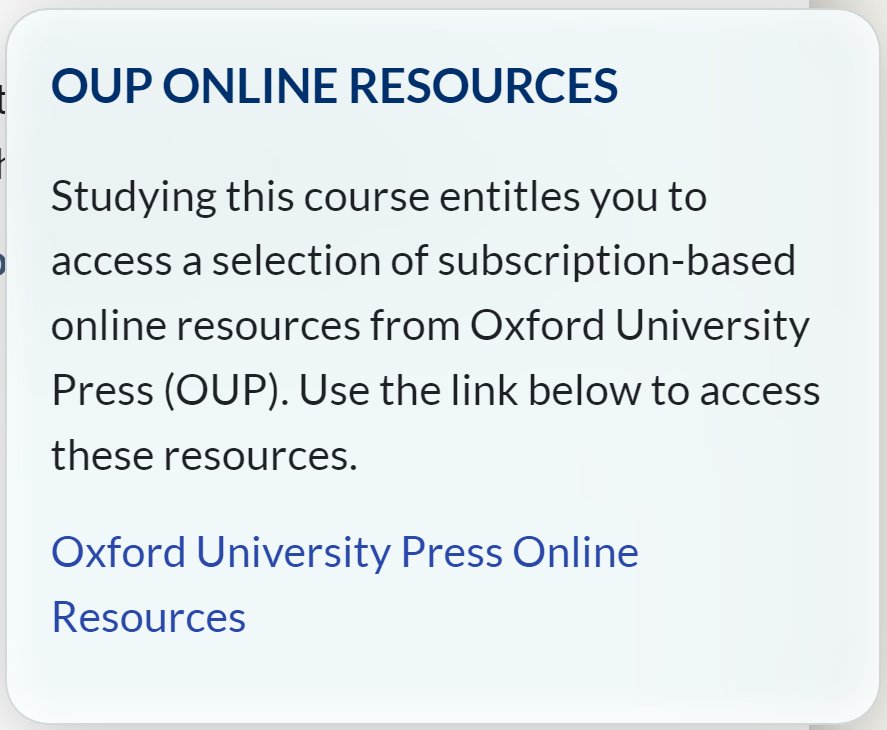
If you are studying a short course with access to Oxford University Press Online Resources, you can access the resources via the link in the OUP Online Resources block. There may also be links to specific resources in your course materials. There is more information on the Oxford University Press online resources page.
Administration
This provides you with context-sensitive options and you will see a different list of links for different features of the course.
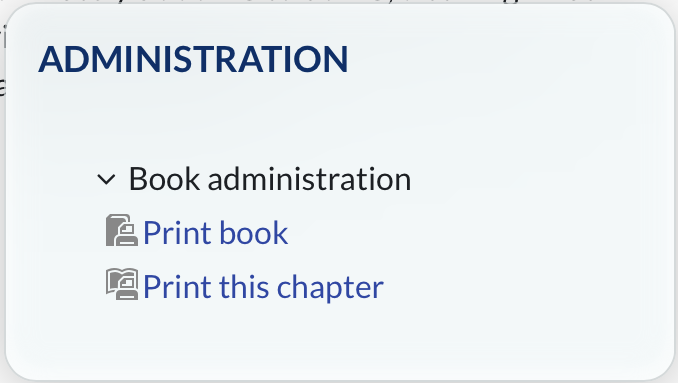
For example, if you are on a short course and navigate to a unit and then a chapter, you will see options to print the content of that chapter or the entire book. If you look at the Administration block when you are in a forum you will see options to subscribe and unsubscribe to that forum.
 button which you will see in the bottom right hand corner of your screen.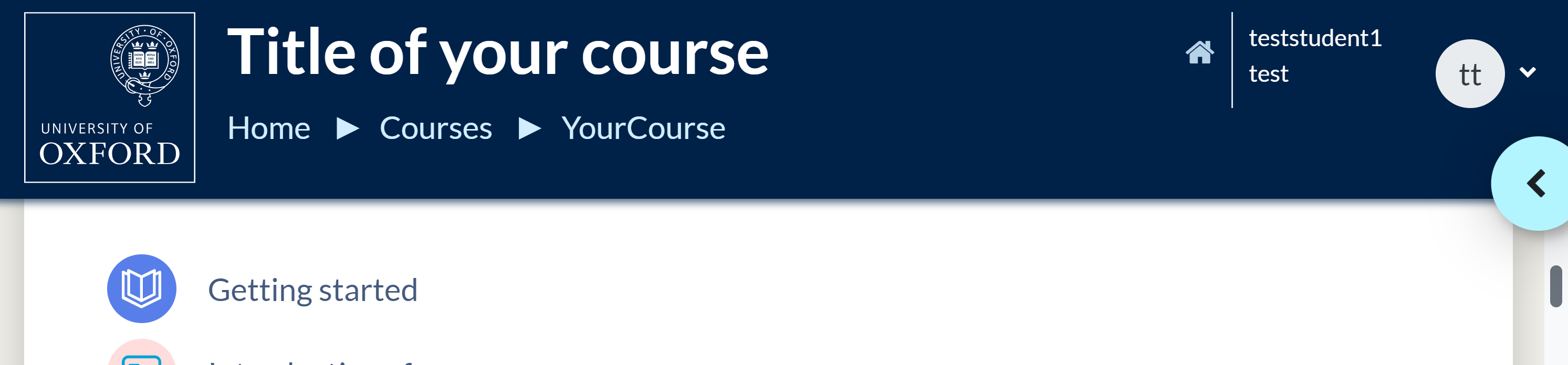
 icon. If your course has the Activities block click Assignments to see a list of all your assignments and their due dates. Click on a particular assignment to go to the details and submission page for that assignment.
 icon.
icon.