
My profile and preferences

Your profile and preferences are accessed differently depending on the type of course you’re studying so please see the note in the box below if you are on a short-course.

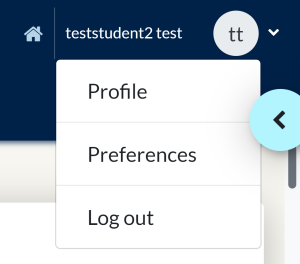
Your student profile is set up to display just your name and the default roundel showing your initials, but you can edit it to introduce yourself and add a picture (or any other image you want to use to represent you) by clicking on your name or initials then choosing Profile (via Study) or Preferences > Edit Profile (via Portal).

NB: The image shown here is what you'll see if accessing your Profile and Preferences from the Study site. If you are on a short-course and log in via Portal you will need to be on the Portal page to update your preferences. If you are in your course and wish to make changes to your profile you will need to go back to Portal to see all the options available.

How do I upload a photo?

To change your picture follow these steps:

  • Click on your name in the top banner.
  • Click Preferences or Profile.
  • Click Edit Profile.
  • Scroll down the page to the heading User Picture – click on the heading to open up this section.
  • Drag and drop your image file into the box with the grey arrow in a circle at the centre, or search for the file using the icon.

  • Once you are happy with the changes you have made, click Update Profile at the bottom of the screen.

If you log into your course via Portal make sure you are on the Portal page otherwise you will not see all the available options.

Changing your password

If you log into your course via Study using your SSO details and wish to change your password, you can do this using the Change Password page.

If you access your course via Portal with a Moodle username and password follow these steps to change your password:

  • Click on your name in the top banner.
  • Click Preferences.
  • Click Change password.
  • Follow the steps on screen to change your password.
  • When you are happy with your changes, click Save Changes at the bottom of the screen.

Please be aware that this password change will only affect access to Portal. Your password for all other systems will remain unchanged.

Changing your Forum preferences

  • Click on your name in the top banner.
  • Click Preferences.
  • Click Forum preferences.
  • Read and select your preferred options, there is more information on these in the Discussion forums section. It is helpful to select Yes to Forum tracking as this allows new posts to be highlighted when you log into your course.
  • Once you are happy with the changes you have made, click Save Changes at the bottom of the screen.

For information on changing your forum subscriptions see the Discussion forums page.
How to log in to your course

When your course begins you will be sent a web address (url) for your login page. Two of the most common sites for our students are portal.conted.ox.ac.uk which is used for short online courses, and study.conted.ox.ac.uk which is used for award-bearing courses, among others. You can find out from your course administrator which site you should log in to, or refer to your joining instructions email or handbook.

If you are studying one of the very few courses that use neither Portal or Study, please follow the instructions for Portal substituting your course website address.

Follow the instructions below for your particular course site.

How to log in to your short online course via Portal

For most of our short online courses you will log in using Portal. If this is your first time studying with us, you will receive your username and password from the Online Courses Office on the day your course starts. For continuing students your username and password will remain the same.

To log in:

Once you are logged in you can use the Portal to update your profile.

When you are ready to view your course you can find it using one of the following routes.

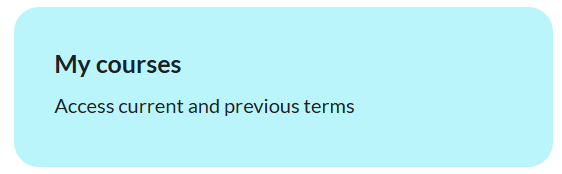
Either, click on your course title under My courses. Or, click on the appropriately named term link under CURRENT or PREVIOUS terms. Then, find your course by clicking the blue roundel at the top right of the page to open the menu drawer and clicking your course name under My courses in the NAVIGATION box.

How to log in to your course via Study

Using your University of Oxford Single Sign-On details

If you log in to your course using Study you will usually use your University of Oxford Single Sign-On details, often referred to as your “SSO” username and password. You will receive details from the university explaining how to activate your SSO username and password. Once you have activated your SSO you can use these details to log into Study.

To log in:

  • Go to https://study.conted.ox.ac.uk
  • Click on the Log in button
  • Enter your username followed by @OX.AC.UK, (i.e. abcd1234@OX.AC.UK, where abcd1234 represents your existing SSO username)
  • Enter your SSO password (NB passwords are case-sensitive)
  • Click Sign in
  • Follow the necessary steps to authenticate your login.
Using a temporary Moodle username and password

If you are issued with a temporary Moodle account, you will use these details to log in until your SSO is available. Once your SSO is available please contact us to switch your account over.

To log in:

  • Go to https://study.conted.ox.ac.uk
  • From the log in page, click on Moodle account login
  • Enter your username
  • Enter your password (NB passwords are case-sensitive)
  • Click Log in

This should take you to the Study homepage and from here you can make any changes to your details.

When you are ready to view your course click on the blue roundel at the top right of the screen to open the menu drawer. Then click to select your course under My courses in the NAVIGATION block.

I’m still having trouble logging in

If you are still having trouble logging in you may be able to resolve the problem yourself using the advice below.

Logging in to Study
  • If you cannot remember your username and/or password, or if you are unsure of either, then go to Webauth to reset your password.
  • Go to the log in page and press Control and F5 together (Ctrl +F5) on your PC keyboard to clear any stored passwords.
Logging in to Portal
  • Click on the Forgotten your username or password? link on the login page to reset your password.
  • Once your password has been changed press Control and F5 together (Ctrl + F5) on your PC keyboard to clear any stored passwords.

If you are still having difficulty, please contact us.